Quick Answer:
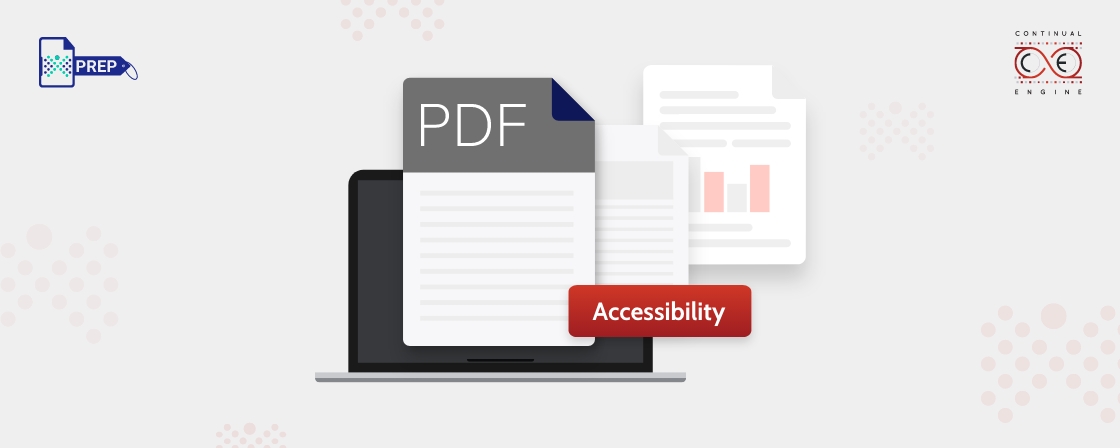
PDF accessibility is the practice of structuring PDF documents with tags, alt text, a logical reading order, and searchable text so people using screen readers and other assistive technology can read and navigate them. An accessible PDF meets standards like WCAG 2.2, PDF/UA, and Section 508, and is checked using automated tools, manual review, and testing with assistive technology.What is PDF Accessibility?
With regards to PDF accessibility, meeting comprehensive standards such as WCAG 2.2, PDF/UA, and Section 508 allows for the creation of accessible PDF documents to be read by screen readers like JAWS or NVDA, text-to-speech tools, screen magnification, and other assistive technologies.
What is Importance of PDF Accessibility?
Creating accessible PDF documents is essential for various reasons, from legal compliance to making an ethical move. Here are other reasons why PDF accessibility should take center stage when creating important business-related documents:
- Empowers Everyone: Accessible PDFs ensure people with disabilities can easily read and interact with your content.
- Complies with Legal Standards: With PDF accessibility at the core of your organization, you stay compliant with laws like Section 508, ADA, and WCAG 2.2.
- Enhances Usability: Creating accessible PDF documents isn’t just beneficial for individuals with disabilities. Everyone who wants easy readability can benefit from it.
- Reaches a Wider Audience: Accessible PDFs open your content to more people, including assistive tech users and even people who are not digitally advanced.
- Boosts Brand Reputation: Imagine being called the socially and ethically responsible brand that cares about its audience regardless of their abilities. With PDF accessibility at the core, you can show commitment to inclusion and stand out as a socially responsible organization.
3 Main Parts of an Accessible PDF
-
Visual
What you see on the screen is the visual layer of a PDF. One of the biggest perks of using a PDF is that it preserves the exact look and layout of the original document, often called the "source document." Whether you're viewing it on different devices with varying screen sizes or printing it out, the appearance stays consistent, making it incredibly reliable.
-
Content
The PDF accessibility comes with a second layer of content that handles the essential formatting of text, such as colors, fonts, and the arrangement of text into lists or tables. If you choose to “reflow” a document, say, to make it easier to read on a smaller screen, this layer takes over, displaying the content in a simplified format instead of sticking to the original visual layout.
-
Tags
The tags layer is where a document's structure lives. It organizes elements like links, headings, tables, and lists. This layer plays a crucial role in supporting assistive technologies, such as screen readers, by giving them access to this structured information. For instance, a screen reader can help users jump straight to headings, making navigation faster and more efficient.
What Are the Key Characteristics of an Accessible PDF File?
Accessible PDF files share several essential characteristics that ensure the content can be read, interpreted, and navigated by all users, including those using assistive technologies. Below are the key features that define an accessible PDF.
Searchable text
Text must be selectable, not a scanned image. Scanned PDFs need OCR before remediation can begin.
Fonts that support extraction
Fonts must map correctly to Unicode so software can extract, read aloud, or convert text to Braille.
Labeled form fields
Fields need clear labels, a logical tab order, and extended time options where limits apply.
Hyperlinks and navigation
Bookmarks, descriptive links, and a table of contents help readers move through the document.
Language and title settings
A set document language and meaningful title help screen readers and file identification.
Assistive-tech-friendly security
Print or edit restrictions are fine, but text must stay available to speech and Braille tools.
Structure tags and reading order
Tags identify headings, lists, and tables, and define the order screen readers follow.
Alt text for non-text elements
Images and icons need meaningful descriptions; multimedia needs captions or transcripts.
How to Make a PDF Accessible?
- Creating accessible PDF documents requires you to follow certain steps for a smoother flow of process. Below is a step-by-step guide on how to make a PDF accessible:
Create a Logical Reading Order
The way your tags are arranged in the tags tree plays a big role in how screen readers interpret your document. To make sure the content flows smoothly for users, the tags need to follow a logical sequence. Similarly, the reflow order of your PDF should feel intuitive. You can manage this by making sure the containers in your content pane are stacked in the right order.
Add PDF Tags
Adding PDF tags is a crucial element of the PDF accessibility process. The structure tags in an accessible PDF define the reading order and identify page elements like sections, paragraphs, headings, and tables. With the help of tag structure in an accessible PDF document, the documents can be reflowed and resized for convenient viewing on mobile as well as larger devices.
Here are some tags to consider for creating accessible PDF documents:
- Heading Tags: They provide structure to your document and organize the content inside. The first heading should be in H1 and then followed in a hierarchical structure up to H6. The levels should not be skipped.
- Link Tags: The links inside an accessible PDF should have descriptive link tags.
- Paragraph Tags: PDF accessibility is incomplete without adding a paragraph tag which can be indicated with ato show regular paragraph text.
- List Tags: Lists are a great way to keep content organized. To structure them properly, use list to wrap the entire list, list tag for individual items, and to define the content within each list item.
- Table Tags: For creating accessible PDF documents, data tables should include clear headers for both columns and rows, with a scope designated to link header cells to their data. Complex tables should be simplified, but if used, cell IDs must ensure proper association. Layout tables should not be tagged as data tables, and a table of contents should be structured appropriately, with navigational links for easy access. Read More : How to Tag Tables in PDFs
- Image Tags: When adding images for PDF accessibility, wrap them in a figure tag and make sure to include meaningful alt text that accurately describes the image.
Add Alt Text
Alternate text is a brief description added to images, allowing screen readers to convey their purpose to users with visual impairment. It’s crucial for PDF accessibility as it ensures equal access to information for everyone.
In the Accessibility Panel, click on “Set Alternate Text.” A popup will appear, walking you through each image in your document. Here, you can add or edit alt text as needed or mark images as “Decorative” if they don’t carry any important information.
Check Color Contrast
Ensure your PDF text and elements have clear color contrast, with a ratio of at least 4.5:1 for standard text. Accessibility Checkers will prompt you to review this, or you can use tools like Color Contrast Analyser. If issues arise, fix them in the original source document for better results and a smoother process.
Tag Interactive Elements
When creating accessible PDF documents, correctly tagging the interactive elements like form fields is essential to make them navigable with just the keyboard. Every form field should have a clear, easy-to-understand label and, if needed, a helpful tooltip to guide users. Set up a logical and intuitive tab order to make navigation a breeze. When adding hyperlinks, use descriptive link text that tells users exactly what to expect. Do not use vague terms like “click here.”
Contain Necessary Metadata
Set the document language to help screen readers with accurate pronunciation and smoother navigation. Give your PDF a clear and meaningful title, and make sure it’s set to display in the window options for better accessibility and usability.
Read More : What is PDF Metadata?
How to Check PDF Accessibility?
Automated PDF Checking Tools
With the help of automated PDF-checking tools and software, you can identify accessibility issues quickly and conveniently. These include untagged content, missing alternate data, missing metadata, and other issues.
Read more about PDF Accessibility Checker
Manual Testing
While there are automated solutions for checking PDF accessibility, manual testing is also required. With manual testing, you can ensure that all the documents are readable and easily navigational and that the tagging and hyperlinking are accurate for screen readers and other assistive technologies.
Assistive Technology
Creating accessible PDF documents is incomplete without running through the document content in assistive technology like screen readers. When you run it through these, you can pinpoint any inaccuracies.
Related Read : PDF Accessibility Strategies For Web Content
How Continual Engine Helps You Create Accessible PDFs?
Continual Engine offers two paths to PDF accessibility, automated remediation software your team runs in-house, or fully managed remediation handled by our specialists. Either approach ensures your documents meet WCAG 2.2, PDF/UA, ADA, and Section 508 standards.
Do it yourself
PREP PDF Accessibility Software
PREP combines automation with accurate tagging so your team can remediate PDFs at scale, without extensive technical training. Its cloud-based interface supports collaboration, handles scanned files through OCR, and aligns outputs with WCAG 2.2, PDF/UA, ADA, and Section 508.
Explore PREPLet us handle it
Continual Engine PDF Accessibility Services
If you prefer expert assistance, our trained accessibility specialists review, tag, and test every document to ensure correct reading order and full compatibility with assistive technologies. Ideal for organizations managing large volumes of PDFs or needing reliable compliance.
Explore PDF Accessibility servicesFrequently Asked Questions (FAQs):
What are some of the best tools for PDF accessibility?
Here are some top PDF accessibility tools:
- PREP: A leading PDF remediation software.
- Adobe Acrobat Pro DC: Ideal for creating and editing accessible PDFs.
- PAC (PDF Accessibility Checker): A tool for testing PDF accessibility.
- Online PDF Checkers: Quick, basic checks for accessibility.
- Assistive Technologies: Screen readers and other tools help test PDF accessibility.
What are the key guidelines for PDF accessibility?
The main PDF accessibility guidelines include:
- PDF/UA: An international standard for making PDFs accessible.
- WCAG: Although focused on web content, many of its principles are also relevant to PDFs.
What are the main principles of PDF accessibility?
The core principles of PDF accessibility are:
- Perceivable: Information should be presented in a way that users with disabilities can perceive.
- Operable: The interface and navigation should be easy to use.
- Understandable: Content and navigation must be clear and easy to understand.
- Robust: The content should be compatible with various user agents, including assistive technologies.
How do you make a PDF screen reader friendly?
A PDF becomes screen reader friendly when it includes proper tagging, a logical reading order, searchable text, descriptive alt text, labeled form fields, and meaningful links. Setting the document language and testing the file with a screen reader ensures accurate navigation and interpretation.
What does an accessible PDF look like?
An accessible PDF has clear structure, searchable text, organized headings, tagged lists and tables, descriptive links, and alt text for images. It supports keyboard navigation, works smoothly with screen readers, and presents information in a logical, easy-to-follow format for all.
How do I make a PDF link accessible?
Use descriptive link text that explains the destination, never “click here” or a bare URL, since screen readers announce link text out of context. Links should be keyboard-navigable in a logical tab order and visually distinguishable from surrounding text, typically with an underline rather than color alone.
What accessibility features should I look for in a PDF editor?
Look for an editor that creates and edits tags directly, sets reading order, adds alt text, defines table headers with scope, flags color contrast issues, and runs automated accessibility checks. Adobe Acrobat Pro DC covers these natively, while tools like PREP add automation for high-volume remediation.
What makes a PDF accessible?
An accessible PDF has a complete tag structure, searchable text, alt text for images, labeled form fields, descriptive links, a defined document language, and a reading order matching the visual layout. These elements work together, and missing any one leaves the document only partially accessible.