Understanding PDF Metadata from Start to Finish

pdf metadata
When you open a PDF, you usually just focus on the content inside. But behind every PDF, there’s hidden information that tells you more about the file itself. This is called PDF metadata. Understanding metadata can help you manage files better, improve accessibility, and make sure your documents meet legal or organizational standards. In this blog, we’ll walk you through everything you need to know about PDF metadata from start to finish.

What is PDF Metadata?

PDF metadata refers to hidden information stored inside a PDF file that describes its content, origin, and settings. This includes details like the document title, author name, creation date, keywords, and even the software used to create it. Metadata helps search engines and PDF readers understand what the file is about, making it easier to organize, find, and manage documents. It’s commonly used in publishing, archiving, and legal workflows to ensure proper classification and improve file discoverability without changing the visible content.

What are the Components of a PDF Metadata?

PDF Metadata commonly includes these core components:
  1. Basic Document Information

    This section holds the most direct and visible details about the PDF file. It tells users what the document is and who created it. When you open file properties and see general information, it is pulled from this layer.

    It usually includes:

    • Title of the document
    • Author name
    • Subject or topic
    • Keywords linked to the content
    • Creator details shown in file properties

    This information helps both users and search systems quickly identify the document’s purpose.

  2. Technical File Information

    Technical metadata focuses on the backend structure of the PDF. It captures how the file was created and how it exists as a digital object. While general readers may not use this information daily, it becomes useful for IT teams, developers, and document managers.

    Common elements include:

    • Software used to create the PDF
    • PDF version format
    • File size
    • Number of pages
    • Creation date
    • Last modification date

    This data helps in troubleshooting, version control, and long term document management.

  3. Dublin Core Metadata (Optional but Common)

    Dublin Core is a widely used metadata standard, especially in digital libraries, archives, and institutional repositories. It creates consistency when managing large volumes of documents.

    It may include fields such as:

    • Creator
    • Contributor
    • Publisher
    • Document format
    • Language
    • Rights and usage terms

    While it is optional, many organizations rely on Dublin Core to maintain uniform metadata structures across systems.

  4. XMP Metadata (Extensible Metadata Platform)

    XMP metadata stores structured information directly inside the PDF using XML format. The benefit here is portability. Even if the file is shared, copied, or transferred, the metadata remains embedded.

    Key capabilities include:

    • Storing multiple metadata schemas
    • Holding custom metadata fields
    • Supporting automation workflows
    • Enabling long-term archiving standards

    Because of its flexibility, XMP is widely used in enterprise document ecosystems and publishing environments.

  5. Document Security and Rights Metadata

    Security metadata defines how the PDF can be accessed, edited, or shared. It protects sensitive content and ensures controlled distribution.

    This section may contain:

    • Encryption status
    • Password protection settings
    • Digital signatures
    • User permission levels
    • Licensing or reuse rights

    Such controls are especially important for legal, financial, and confidential institutional documents.

  6. Accessibility Metadata

    Accessibility metadata ensures the PDF can be used by individuals with disabilities. It supports assistive technologies like screen readers and voice navigation tools.

    Important accessibility elements include:

    These details help the file comply with standards like WCAG and PDF/UA, making the content usable for a wider audience.

  7. Custom Metadata Fields

    Custom metadata fields are created based on organizational or workflow needs. They allow institutions to go beyond standard metadata and add document-specific identifiers.

    Examples include:

    • Grade level or subject tags in schools
    • Department codes in corporations
    • Document status markers
    • Project or client IDs

    These fields improve internal searchability, sorting, and document tracking across systems.

Why is PDF Metadata Important?

Here’s why PDF metadata matters more than you might think:
  1. Protect Sensitive Information

    PDF files often carry hidden metadata that includes the author's name, organization, creation date, and editing history. If left unchecked, this data can expose sensitive details that were never meant to be shared. Cleaning or reviewing this metadata helps you prevent unintentional leaks when sharing documents publicly or with external teams.

  2. Organising Your Digital Library

    Metadata helps you organize and manage large sets of documents without opening each file. It includes searchable fields like title, subject, author, and keywords. This makes it easier to locate files, sort content by topic or date, and build a more efficient document system for schools, offices, or personal use.

  3. Verify Authenticity

    Metadata acts like a fingerprint for your PDF. It shows who created the file, when it was last modified, and sometimes what software was used. This information helps you confirm whether a file is original, altered, or from a trusted source. In academic, legal, and government contexts, this is especially useful to track authenticity and avoid tampering.

  4. Track Document History

    By reading the metadata, you can trace the history of a document from its creation to its latest update. This helps teams understand who made what changes and when. In collaborative environments, this supports accountability and transparency while working on reports, forms, or policies.

  5. Improve Usability for Assistive Technology

    PDF metadata plays an important role in accessibility. Screen readers and other assistive tools rely on metadata like title, language, and structure to provide a smooth reading experience. When metadata is complete and accurate, it helps people with visual or cognitive impairments access and understand the content more easily.

How to View PDF Metadata?

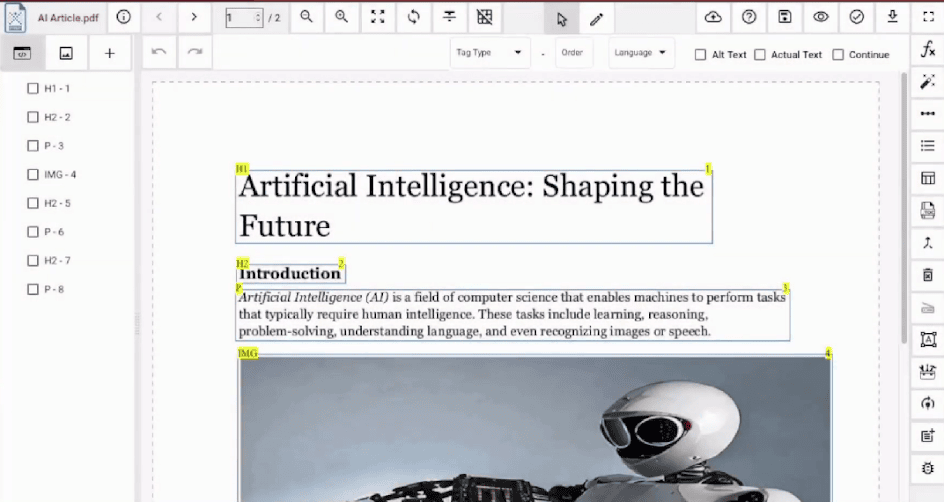
  1. Open your PDF: Launch the PREP application and open the document you wish to inspect.
  2. Locate the Metadata Icon: On the top toolbar, click the Metadata icon (represented by a small "i" inside a circle).
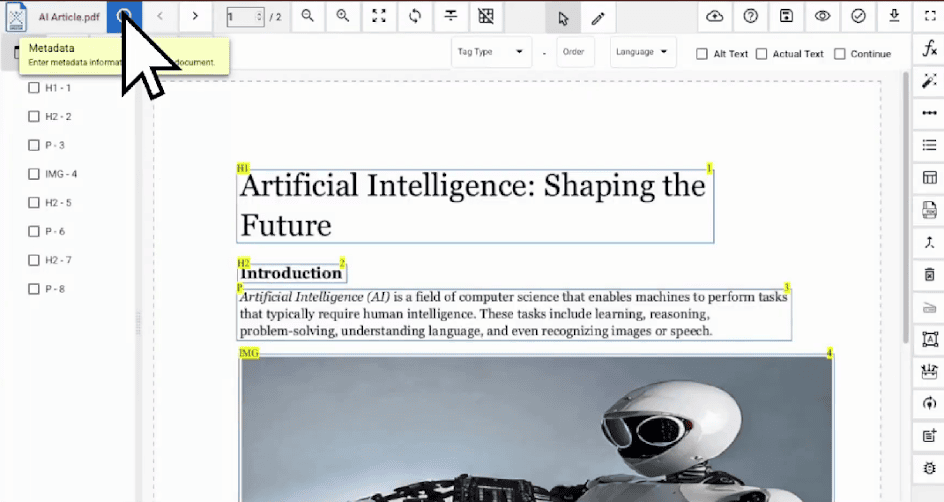
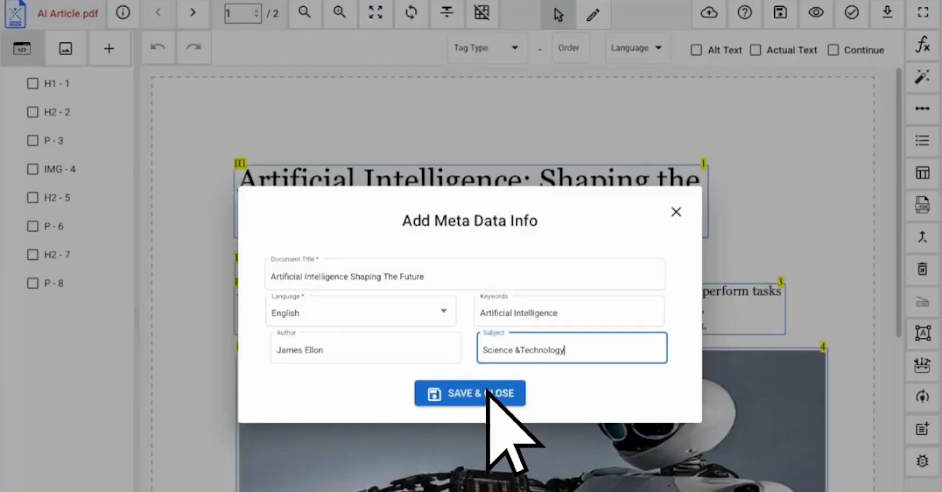
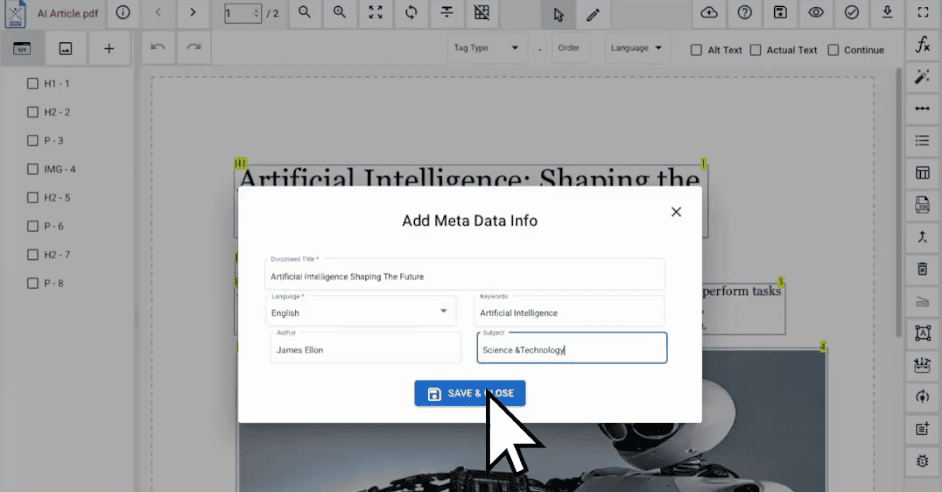
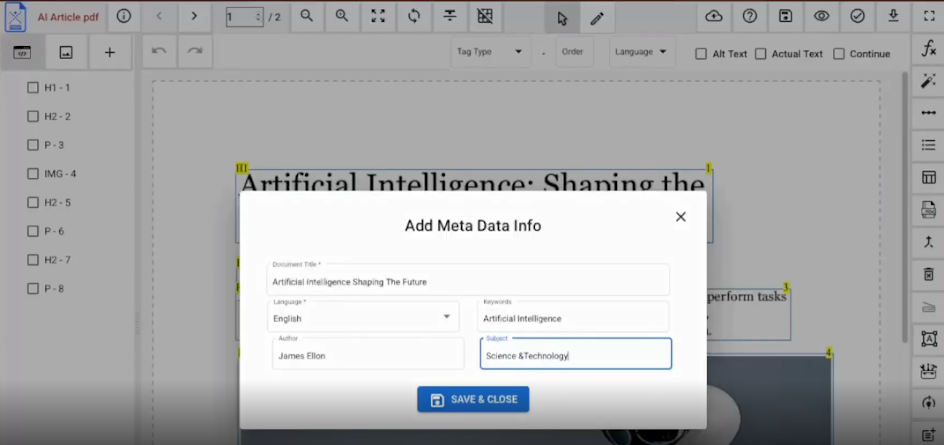
  3. View the Details: A pop-up window titled "Add Meta Data Info" will appear, displaying the current Title, Language, Keywords, and Subject of the file.
How to Add PDF Metadata in PREP?

Adding metadata helps make your PDF file easier to search, organize, and read using assistive technologies. Here’s how to do it step by step in the PREP application:
  1. Open Your File

    • Launch the PREP application on your device.
    • Go to File > Open or simply drag and drop your PDF file into the PREP window.
  2. Locate the Metadata Tool

    • Look at the top toolbar.
    • Click on the Metadata icon, usually shown as a tag or info symbol.
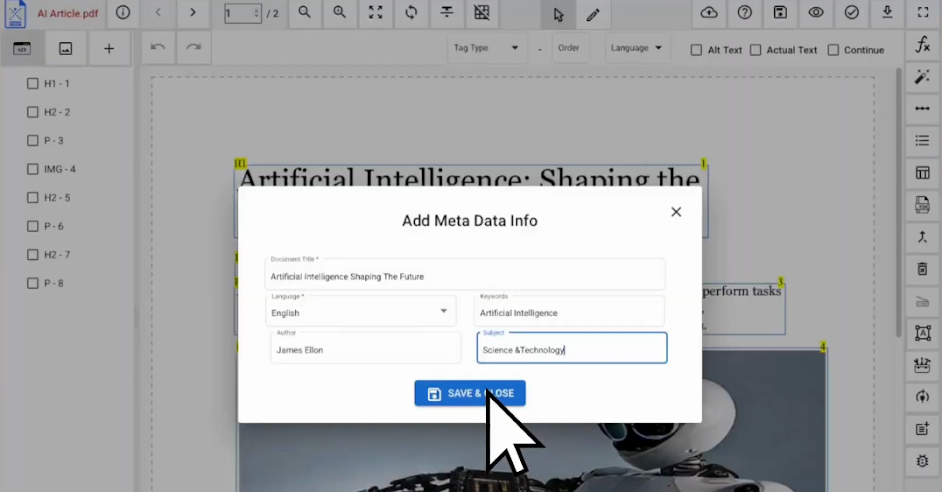
  3. Fill in Metadata Fields

    Once the Metadata Panel or pop-up opens, you will see several fields to complete. Enter your details in each of these:

    • Title: Type the full name of your document (e.g., "Annual Budget Report 2026").
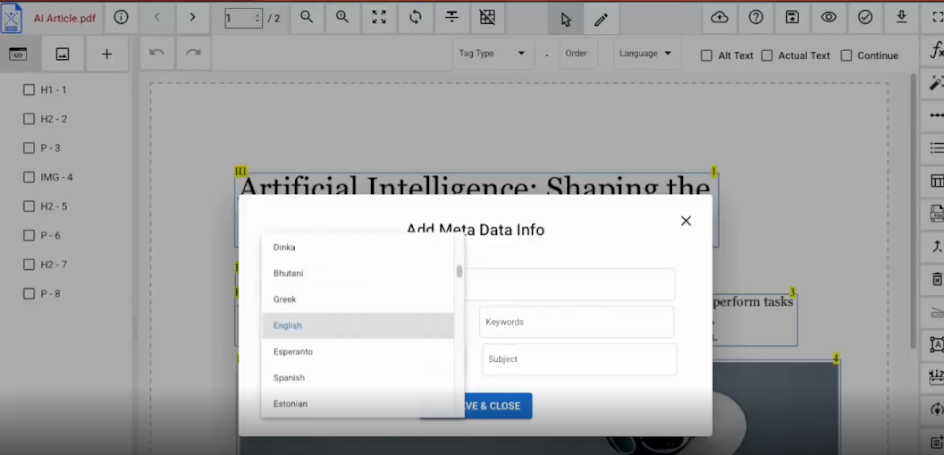
    • Language: Select the main language used in the document (e.g., English, Hindi).
    • Keywords: Add words or phrases related to the document, separated by commas. These help others find your PDF using search (e.g., "financial report, budget, 2026").
    • Author: Enter the name of the person, department, or organization responsible for the document.
    • Subject: Write a short one-line summary of the document's purpose or contents.
  4. Save and Apply Metadata

    • After reviewing all entries for accuracy, click the Save button at the bottom of the metadata panel.
    • This will embed the metadata directly into the PDF file.
How to Remove PDF Metadata in PREP

Removing metadata is important when sharing PDFs outside your organization. It helps protect internal details such as document history, author names, and internal keywords.
  1. Load the PDF in PREP

    • Open PREP and drag your file in or use File > Open to load the PDF.
  2. Open the Metadata Panel

    • Click the Metadata icon on the top toolbar to see the current embedded metadata.
  3. Manually Clear Each Field

    • Click inside each of the fields like Title, Author, Subject, etc.
    • Highlight the existing text and press Backspace or Delete on your keyboard.
    • Make sure all the fields you want to clear are completely empty. You can choose to leave some fields filled if needed.
  4. Save the Clean File

    • Once you have cleared all necessary fields, click Save.
    • PREP will overwrite the existing metadata with the now-empty values, removing all the hidden information from the file.

How to Improve Your PDF Metadata Management

Managing PDF metadata properly helps ensure documents are searchable, accessible, and compliant. If you’re looking to improve your metadata workflow, here are a few clear steps to follow:
  1. Establish a Standardized Metadata Framework

    Start by setting clear rules for how metadata should be entered and maintained across your PDF files. This includes defining what fields to include (like title, author, subject, keywords, language, tags, etc.) and how to format them. When everyone in your organization follows the same structure, your files become easier to organize, search, and manage.

  2. Use Metadata Templates for Faster, Consistent Input

    Rather than filling in metadata manually for each file, create reusable templates that include the standard fields you need. This saves time and makes sure the right details are captured every time. It’s especially useful when working on large batches of documents.

  3. Leverage Automated Metadata Tools

    Using automated tools like PREP can make metadata management faster and more reliable. PREP scans your PDFs to detect missing or incomplete metadata and fills in the gaps automatically. It uses AI and OCR to extract information such as titles, author names, and content summaries. This reduces manual workload and helps maintain consistency across large document collections, especially when accuracy and compliance matter.

  4. Implement Metadata Validation and Quality Checks

    Metadata isn’t useful if it’s filled with typos, outdated tags, or irrelevant keywords. Set up regular checks to clean and validate your metadata. This can be done using scripts, software tools, or manual reviews. The idea is to make sure every entry adds value and keeps the file system organized.

  5. Prioritize Accessibility Metadata

    If you're sharing documents publicly or working in education, government, or any regulated sector, make sure your metadata supports accessibility. Add language tags, alternative text for images (in applicable fields), document structure details, and other accessibility indicators. This supports alignment with accessibility standards such as WCAG and PDF/UA and helps organizations meet regulatory requirements under laws like the ADA.

  6. Maintain Version Control for Metadata

    Just like you track document revisions, it's important to keep version control for metadata changes too. Log updates, date stamps, and the name of the person making changes. This builds accountability and ensures you can trace back issues if metadata ever becomes inconsistent.

Common PDF Metadata Errors and How to Fix Them

These are some of the most common metadata and accessibility errors found in PDFs, along with practical ways to fix them:
  1. Missing or Incomplete Title

    What's the Problem?

    The document shows "Untitled" or just a random filename like final_draft3.pdf in the browser tab or screen reader.

    Why it Matters:

    This creates confusion for users and affects SEO. Assistive technologies cannot correctly identify the document.

    How to Fix in PREP:

    • Open the PDF in PREP.

    • Click the Metadata Icon in the top toolbar (usually marked with an "i" or a tag symbol).

    • In the Title field, enter a descriptive document name like 2026 Annual Report.
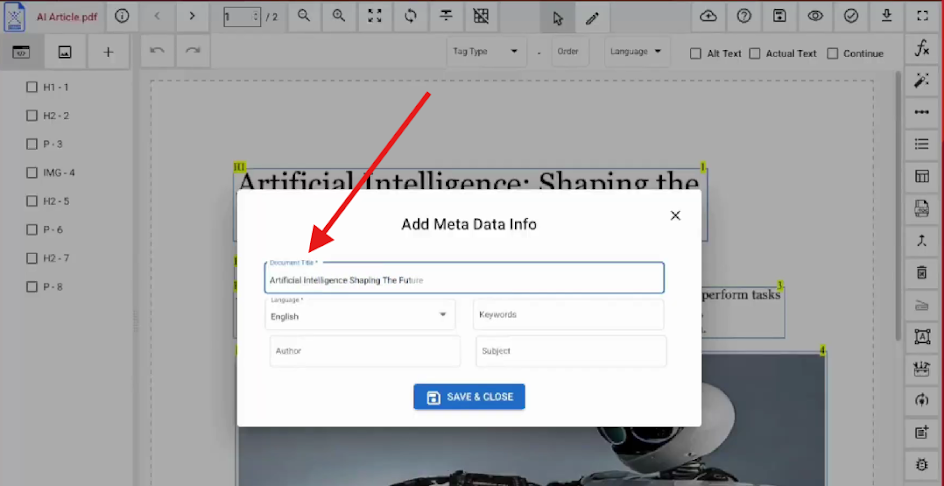
    • Click Save to apply the change.

  2. Incorrect Author Information

    What's the Problem?

    The Author metadata shows names like "Admin," "Scanner," or past employees.

    Why it Matters:

    It lowers the credibility of the document and misrepresents authorship.

    General Fix:

    • Audit the Author field manually using your PDF editor.
    • Use a consistent naming format, such as "Communications Team" or "Legal Department."

    How to Fix in PREP:

    • Open your file and go to the Metadata Panel.

    • Clear out the old name in the Author field.
    • Type in the correct name or department.

    • Hit Save.

  3. Blank or Misleading Subject and Keywords

    What's the problem?

    Subject and Keywords fields are either left blank or filled with unrelated terms.

    Why it Matters:

    Search engines and internal systems cannot sort or classify the document properly.

    General Fix:

    • In the Subject field, write a short summary of the document's content.
    • In the Keywords field, use relevant tags separated by commas.

    How to Fix in PREP:

    • Open the PDF in PREP and go to the Metadata Tool.

    • Fill in the Subject with a phrase like Budget analysis for Q2.
    • Add Keywords such as: Budget, Q2, Analysis, Financial.
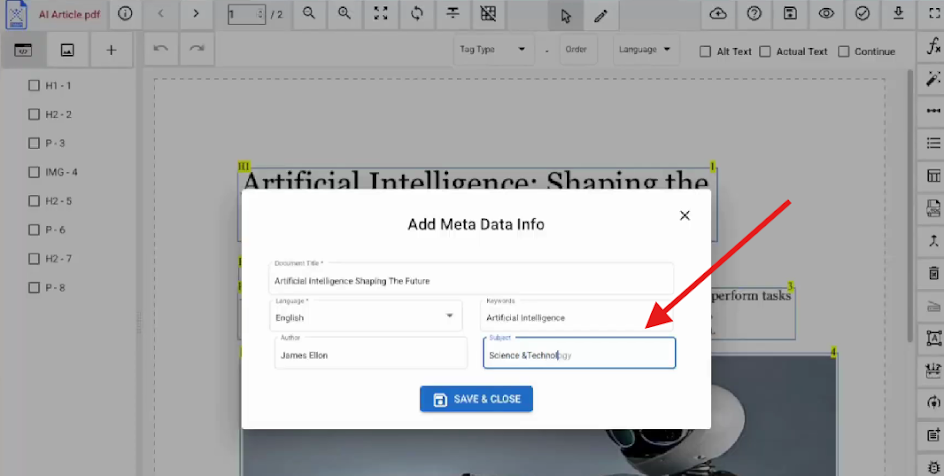
    • Save the changes.

  4. Incorrect Language Setting

    What's the Problem?

    The document's language metadata is missing or set to the wrong language.

    Why it Matters:

    Screen readers use the wrong pronunciation, making the document unusable for visually impaired users.

    How to Fix in PREP:

    • Open the PDF and click the Metadata Icon.

    • Find the Language dropdown.
    • Select the correct option, like English - US.
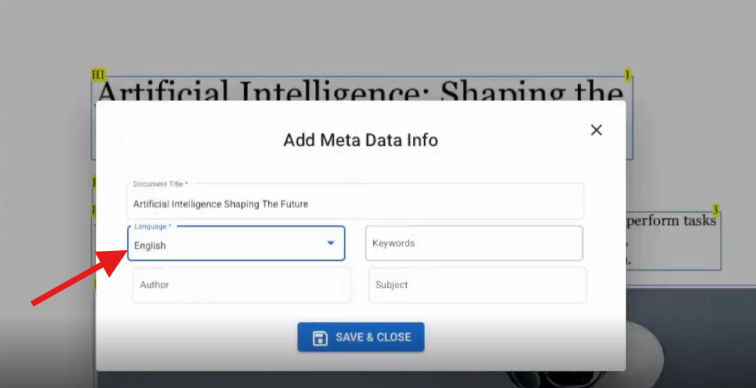
    • Save to apply.

  5. Conflicts Between Document Info and XMP Metadata

    What's the Problem?

    The document's Info and XMP panels show different data, like two different titles or authors.

    Why it Matters:

    This causes confusion during search and can trigger compliance errors in some systems.

    How to Fix:

    • Open the Advanced Metadata Panel.
    • Compare fields and make sure both sets (Info and XMP) match.
    • Use a single master template to avoid inconsistency in future exports.
  6. Outdated or Incorrect Creation/Modification Dates

    What's the Problem?

    Dates show as several years old or are clearly inaccurate due to copying files from old systems.

    Why it Matters:

    It creates confusion in version control and affects document reliability.

    How to Fix:

    • Use the Document Properties panel to edit timestamps if allowed.
    • If not editable, regenerate the file using updated software.
    • Set clear date rules for your team when exporting or saving PDFs.
  7. Missing Accessibility Metadata

    What's the Problem?

    Fields like document language, tagged status, or alt-text indicators are not set.

    Why it Matters:

    The PDF fails accessibility standards like WCAG or PDF/UA, making it hard for assistive tech to read.

    How to Fix:

    • Tag the document properly using tools like PREP or Adobe Acrobat.
    • Make sure all images have alt text.
    • Run an accessibility checker to validate your document.
  8. Deprecated or Non-Standard Metadata Fields

    What's the Problem?

    Old or custom metadata fields from legacy tools are still embedded in the file.

    Why it Matters:

    These fields cause issues when sharing files across platforms or uploading to CMS systems.

    How to Fix:

    • Remove deprecated tags using your metadata editor.
    • Replace them with standard, recognised XMP fields.
    • Validate the structure using schema validation tools.
  9. Confidential or Excessive Metadata

    What's the Problem?

    PDF metadata contains sensitive information like usernames, device names, or internal project notes.

    Why it Matters:

    This can lead to privacy leaks, especially when the document is shared externally.

    How to Fix:

    • Always scrub metadata before sharing.
    • Use tools like PREP or Acrobat to strip hidden metadata.
    • Set up a routine that automatically removes sensitive data during publishing.
  10. Metadata Not Embedded Properly or Completely Missing

    What's the Problem?

    The file might have the right filename, but the metadata fields inside the PDF are empty or missing entirely.

    Why it Matters:

    Search tools, assistive readers, and archiving systems cannot access or identify the file correctly.

    How to Fix:

    • Open the Document Properties or XMP panel and enter all required metadata manually.
    • If exporting in bulk, ensure your system embeds metadata properly during export.
    • Use a preflight checker to confirm that the data is embedded and usable.
Tired of fixing PDF issues manually?

Clean metadata, fix accessibility issues, and manage your PDFs with clarity and control.

Closing Thoughts

Understanding PDF metadata may not feel important at first, but once you start working with large files, shared documents, or compliance requirements, it quickly becomes something you cannot ignore. When your metadata is clean, accurate, and accessible, your PDFs become easier to manage, easier to find, and easier for everyone to use.
Whether you are creating reports, publishing content, or preparing files for public access, taking a few extra minutes to review and maintain metadata can save you hours of rework later and help you stay on the right side of accessibility and documentation standards.

Frequently Asked Questions

  1. Does metadata store hidden details?

    Yes. It stores background information like author name, creation date, and software used that is not visible on the page.

  2. Does metadata impact file size?

    No. Metadata adds very little data and does not noticeably increase file size.

  3. Will converting another file into a PDF preserve metadata?

    Sometimes. It depends on the conversion tool. Always check metadata after converting.

  4. What does removing metadata from a PDF do?

    It removes hidden information to protect privacy while keeping the visible content unchanged.

Related Posts

Do You Need Some Help? Don't Worry, We've Got You!

"*" indicates required fields

Step 1 of 3

This field is for validation purposes and should be left unchanged.
What is your goal?*