Key Takeaways
- A searchable PDF allows users to search, select, and copy text inside a document.
- OCR technology is what converts scanned PDFs into searchable PDF files.
- Searchability improves productivity, accessibility, and document usability.
- A searchable PDF alone does not guarantee accessibility or compliance.
- Proper structure and tagging are required for screen reader compatibility.
What is a Searchable PDF?
A searchable PDF is a digital file where you can easily look up words or phrases using the search tool in your PDF reader. Unlike regular PDFs that act like scanned images, searchable PDFs contain real text that can be picked up and read by your computer. This is possible because of a technology called Optical Character Recognition, or OCR. It scans the text in your document and turns it into something your computer can understand and search through.
Why Use Searchable PDFs?
- You can quickly search for any word or phrase without scrolling through the whole document.
- They are useful when you have scanned or faxed documents and want to find specific information inside them.
- OCR technology turns the text from these scanned files into a format that lets you search and copy it.
- You save time by not having to manually look for content in large PDF files.
- It helps when working with legal documents, invoices, study materials, or any content that requires quick reference.
Which Industries Benefit the Most from Searchable PDFs?
- Legal Sector: Quickly search contracts, case files, and discovery documents for names or clauses.
- Healthcare: Locate patient details or reports inside large medical records.
- Finance & Insurance: Find policy terms, invoices, and claims efficiently.
- Government & Education: Make records and public documents searchable and accessible.
- Construction & Engineering: Search specifications and reports to avoid costly errors.
- Knowledge Workers & Researchers: Instantly retrieve information from long PDFs.
- Small Businesses: Manage receipts, HR files, and operational documents with ease.
What Is the Difference Between Searchable and Non-Searchable PDF Files?
| Aspect | Searchable PDF | Non-Searchable PDF |
|---|---|---|
| Text Selection | You can select, highlight, and copy the text directly from the file. | You cannot select or copy any text, as it's saved as an image. |
| Search Functionality | You can use the "Find" or "Search" option (Ctrl+F) to look for specific words or phrases in the document. | Search doesn't work because the file doesn't recognize any actual text. |
| Creation Method | Usually created from digital text sources like Word documents or by scanning with OCR (Optical Character Recognition). | Created by scanning a paper document or image without OCR, resulting in a flat image of the content. |
| Editing Possibility | Easier to edit using PDF editing tools, since the text is accessible. | Editing is difficult and often requires OCR tools or retyping the content manually. |
| File Size | Generally smaller in size because it stores text data. | Usually larger in size due to storing full-page images. |
| Use Case | Best for documents that need to be searched, copied, or archived with text recognition (like reports, e-books, or forms). | Common for scanned contracts, handwritten forms, or old paper documents, where editing isn't needed. |
| Accessibility | More accessible for screen readers and assistive technologies. | Less accessible, as screen readers cannot read image-only text. |
Types of PDF Files You Should Know About
-
Text-based PDFs
These are the ones you’ll find in e-books, guides, and instruction manuals. They’re made up of real text, which means you can search through them, copy content, and convert them into other file formats without much trouble. They’re also easier to read on devices like e-readers or smartphones. -
Image-Based PDFs
These are more like a collection of pictures inside a PDF file. You’ll see these in brochures, scanned documents, or flyers where the layout and visuals matter more than editable text. Since they’re images, you can’t search or copy any text from them. They’re more like JPG or PNG files bundled into a PDF.
What are the Common Issues That Break PDF Search?
- Image-Only or Scanned PDFs: When a PDF is created from a scan without OCR, the text exists only as an image. As a result, the content cannot be searched, selected, or recognized by assistive technologies.
- Incorrect Text Encoding: In some PDFs, text is encoded improperly during conversion or export. This can cause search results to fail or return inaccurate matches, even though the text appears readable on screen.
- Mixed Image & Text PDFs: PDFs that contain a combination of OCR-processed pages and image-only pages often produce inconsistent search results. Some content may be searchable, while other sections remain inaccessible.
- Security Restrictions & Permissions: Certain PDFs include security settings that restrict text selection, copying, or searching. These restrictions can block search functionality even when the document technically contains text.
How to Convert a PDF into a Searchable Format
Option 1: Do it Manually
Option 2: Use Online Tools
Many online tools can turn your PDF into a searchable version. Just upload your file and let the tool do the work. It’s quick and easy, but these tools might struggle with larger files or ones with complicated layouts.
Option 3: Go with PDF OCR Software
How to Make a PDF Searchable and Accessible Using PREP
Step 1: Check if Your PDF is Already Searchable
- If you can highlight or search for text, your file is already searchable.
- If you cannot select text, it means the file is image-based. You’ll need to run it through OCR (Optical Character Recognition) to make it searchable.
Step 2: Add Accessibility Features Using PREP
-
Add Tags to the Document
Start by uploading your PDF to the PREP tool. Choose the auto-tagging option and hit the "Upload File" button.
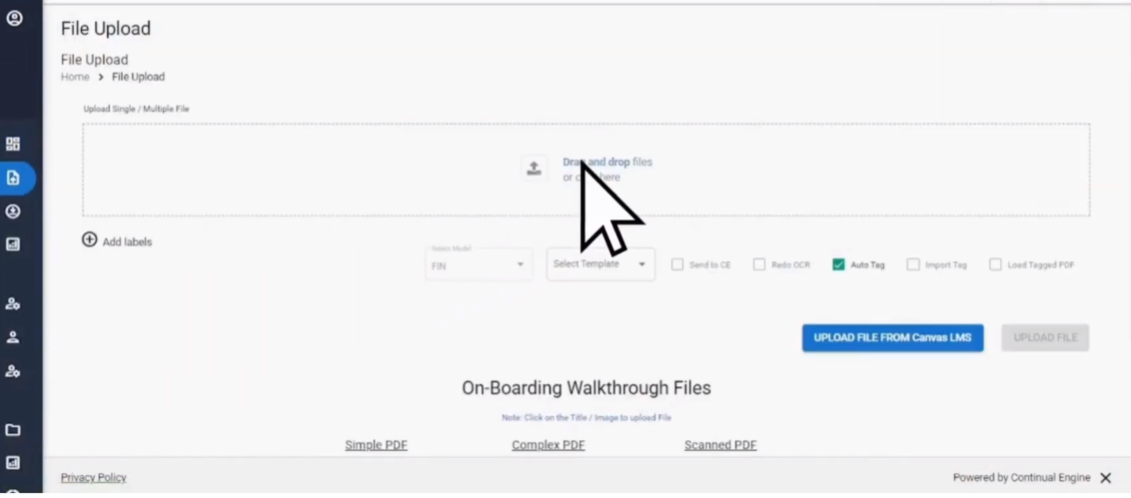
The tool will scan your file and automatically add structure tags. After that, go to the Tag Editor inside PREP to review the tags. You can edit or fine-tune them if needed.
-
Add Alt Text to Images
Alt text helps screen readers describe images. Here’s how you can add it:
- In the PREP Tag Editor, select the image you want to tag.
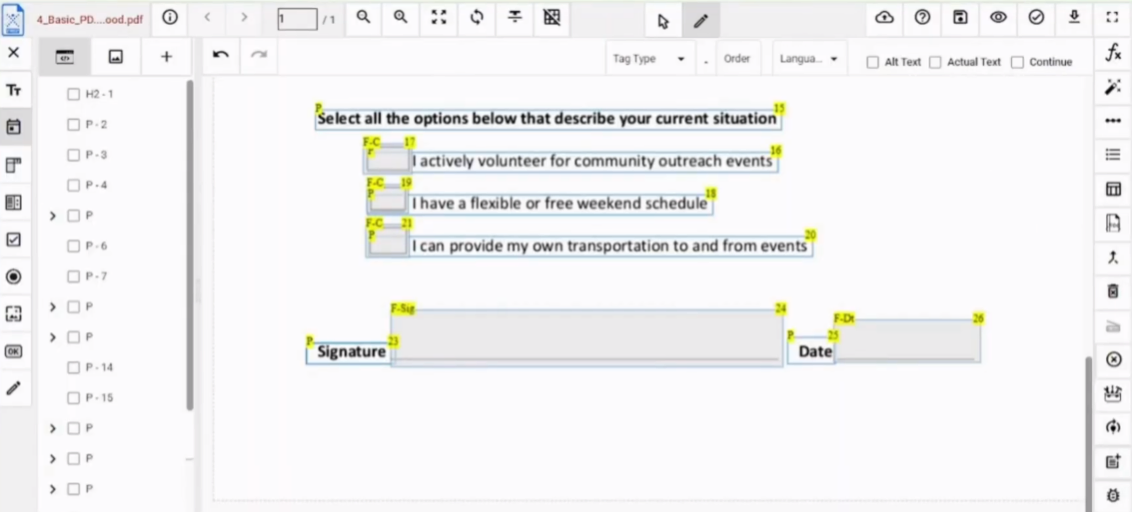
- Click on the image tag, then click on the "Alt Text" option.
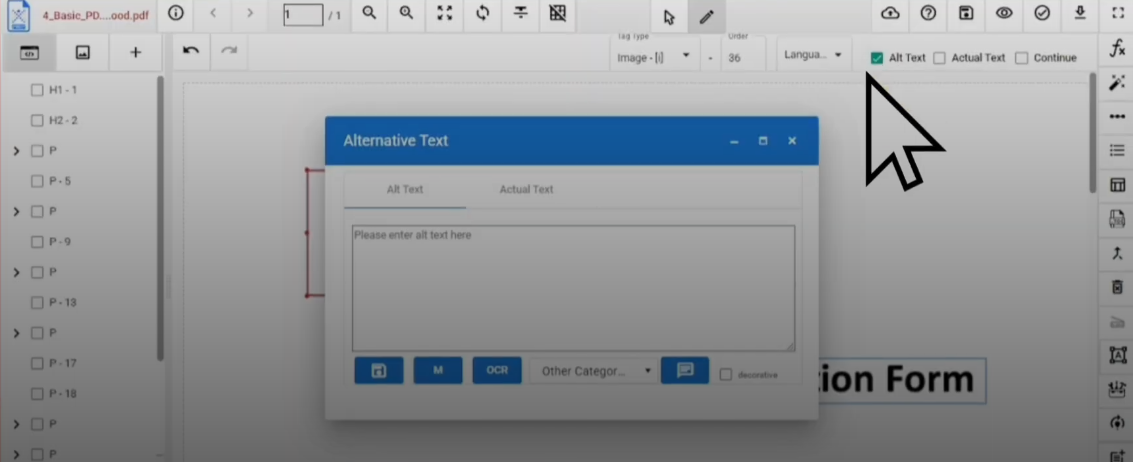
- A box will appear. Select "Image" from the category menu.
- Click "Generate Alt Text" to get an auto-filled description. You can edit this if necessary.
- Save your changes once the description looks good.
- In the PREP Tag Editor, select the image you want to tag.
-
Use Headings and Set the Reading Order
To keep your content clear and easy to follow, make sure the heading structure is correct and the reading order is logical.
For Headings:
- Open the Tag Editor in PREP and click the pencil icon to turn on draw mode.
- Draw a box around the heading you want to tag.
- From the drop-down menu, select the appropriate heading level (H1 to H6).
For Reading Order:
- Click on the BBox element that needs adjustment.
- On the top toolbar, choose the "Order Number" option.
- Enter the number that fits the correct reading sequence.

Step 3: Test for Search and Accessibility
- Click the tick mark icon at the top-right corner of the PREP screen.
- Choose to run a check for a single page or the whole document.
- Download the full report to make sure your PDF meets Section 508 compliance standards.
Step 4: Share Your Accessible PDF
- Share it with your team or audience,
- Upload it to your website,
- Or submit it to any platform that needs accessible content.
Closing Thoughts
Frequently Asked Questions (FAQs)
-
How to open a searchable PDF file?
You can open a searchable PDF in any standard PDF reader. If you can select text or use search to find words, the PDF is searchable.
-
Is OCR enough to make a PDF searchable?
Yes. OCR (Optical Character Recognition) is what converts scanned PDFs into a searchable PDF by adding an invisible text layer. This helps in finding, copying, and highlighting words and converting the static image into an accessible document. Without OCR, scanned PDFs remain image-only, and the text in the image stays unselectable and unsearchable.
-
Can searchable PDFs still fail accessibility checks?
Yes. A searchable PDF can fail accessibility if it lacks tags, correct reading order, alt text, or color contrast. Searchability alone does not ensure compliance. Tools like PREP help address these gaps.
-
Do searchable PDFs work with screen readers?
A searchable PDF provides text access, but screen readers rely on tags for structure, context, and navigation. Without proper tagging, content may be read incorrectly or out of order.
-
Are searchable PDFs required for compliance?
Yes, effectively. Accessibility laws require content to be readable by assistive technologies, which usually requires a searchable PDF with proper structure.
-
Can searchable PDFs be edited later?
Yes. A searchable PDF can be edited, but changes may disrupt OCR or tags. Always revalidate search and accessibility after editing.