Making the PDF reading order accessible is extremely necessary, especially if your PDF is public. But what is a PDF reading order? What’s its importance, and how can the PDF reading order be accessible? Keep reading this guide to get your answers.
What is a PDF Reading Order?
When you open a PDF, the reading order is the path assistive tools like screen readers follow to present the content. Think of it as the roadmap that guides these technologies through the document’s text, images, headings, and other elements. The tags or structure tree embedded in the PDF control this sequence, ensuring everything flows logically.
Getting the reading order right isn’t just a technical detail—it’s vital for accessibility. For someone relying on a screen reader, a poorly organized document can turn into a confusing maze, making it hard to understand or navigate.
By correctly structuring and tagging your PDF, you’re not just tidying up; you’re making the content clear and accessible to everyone, regardless of their abilities.
Why the PDF Reading Order is Important?
Having a logical reading order in your PDF is important as it ensures users can move through content in a way that makes sense and aligns with its intended meaning.
For sighted users, the visual order of elements on the screen typically matches the logical flow. However, for those relying on keyboards or assistive technologies, the tab order dictates how they navigate through the content, including interactive elements like form fields and links. This tab order must mirror the document’s logical structure.
When a document is saved as a tagged PDF, it gains a logical structure. The reading order is primarily defined by the sequence of tags used to identify elements, including interactive ones. Within these tags, the document’s content tree determines the order in which individual elements are presented.
If the reading order is off, users relying on keyboards or assistive devices might need help to follow the content. Take a multi-column layout, for example. Sighted readers intuitively follow the text from top to bottom of one column, then move to the next. But without proper tagging, a screen reader might treat both columns as a single flow of text, reading straight across, which creates confusion.
4 Types of PDF Reading Orders
For people using screen readers and other assistive technology, not having a proper reading order in their PDFs may cause extreme confusion, and they may end up not having access to the PDF at all.
This can hinder your PDF from reaching more people, making it non-inclusive. To make sure your PDF is accessible to everyone, you need to follow the correct reading order, which is of four types, including:
1. Tag Reading Order
The Tag Tree in a PDF acts like a blueprint, organizing the document’s structure by using tags and their logical sequence—what’s known as the Tag Reading Order. According to the PDF/UA-1 accessibility standard, the Tag Tree is essential for ensuring a document’s accessibility, relying on these tags and their proper order to guide users effectively.
If the Tag Reading Order isn’t set up correctly, the content can become a confusing mix of sentences when read aloud, making little sense. This can be particularly challenging for people relying on screen readers, text-to-speech tools, magnifiers, or software designed to assist with dyslexia.
2. TAB Reading Order
When we say “TAB,” we’re talking about the familiar TAB key often used to navigate through hyperlinks and tables in a document. For individuals with upper body mobility challenges, assistive technologies provide a similar function, relying on the TAB Order to help them navigate.
These tools are crucial for people who experience conditions like paralysis, tremors, the effects of strokes or heart attacks, Parkinson’s disease, or other neurological disorders—and even for amputees.
Under the PDF/UA-1 accessibility standards, the TAB Order is designed to align with the Tag Tree (the document’s structural order) to ensure a consistent reading flow. However, a frequent issue arises when the TAB Order isn’t properly set to match the Tag Tree. This misalignment can cause assistive technologies to jump randomly across a page, presenting content in a confusing and disorganized way.
3. Construction or Architectural Reading Order
Before tags and structure were introduced to PDFs about 20 years ago, this was the default order in PDF files. It reflects the physical arrangement of content in the file’s encoding, determined by how the document was created.
Over the years, this pane has been called many names—Reading Order, z-order, and Touch-Up Reading Order (TURO), to name a few. However, calling it the “Reading Order” panel feels misleading since nearly every pane in Acrobat influences the order of PDF elements in some way. Even “Order Pane” doesn’t quite fit—it’s too vague and doesn’t capture its purpose.
Interestingly, this order isn’t mandated by the PDF/UA-1 accessibility standard, which seems like a missed opportunity. Many older assistive technologies still rely on this order rather than the Tag Tree.
Additionally, widely used tools in schools, on mobile devices, and in basic assistive technologies often depend on what’s known as the Architectural or Construction Order instead of the Tag Order.
4. Form Field Order
PDF Forms, or AcroForms, come with their unique order: the sequence in which form fields are accessed as you tab through them. We’ve all been there—hitting TAB only to land in an unexpected field, completely throwing off the flow of filling out the form. It’s a small detail that can cause big frustrations when the order isn’t set up correctly.
How to Fix Logical Reading Order in PDF?
Fixing the reading order of PDFs is important for logical understanding for people using assistive technologies.
1) Using PREP
You can use PREP (PDF & Document Remediation Platform) to fix reading orders. Here’s how:
Method 1: Using Bounding Box
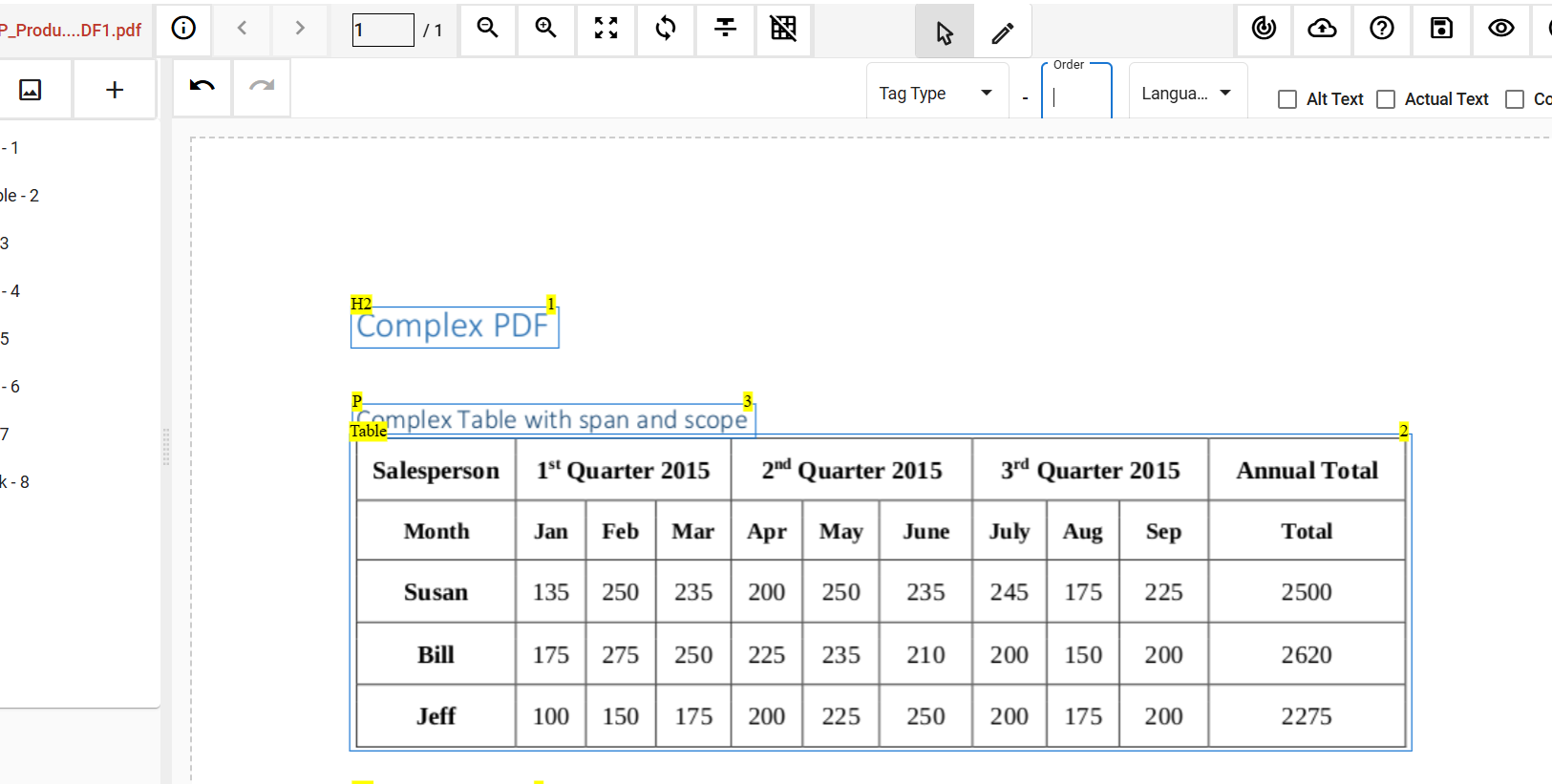
Step 1: Identify the Bounding Box (BBox):
- On the left-hand side of the BBox, there is the Tag Type, and on the right-hand side, there is the Reading Order.
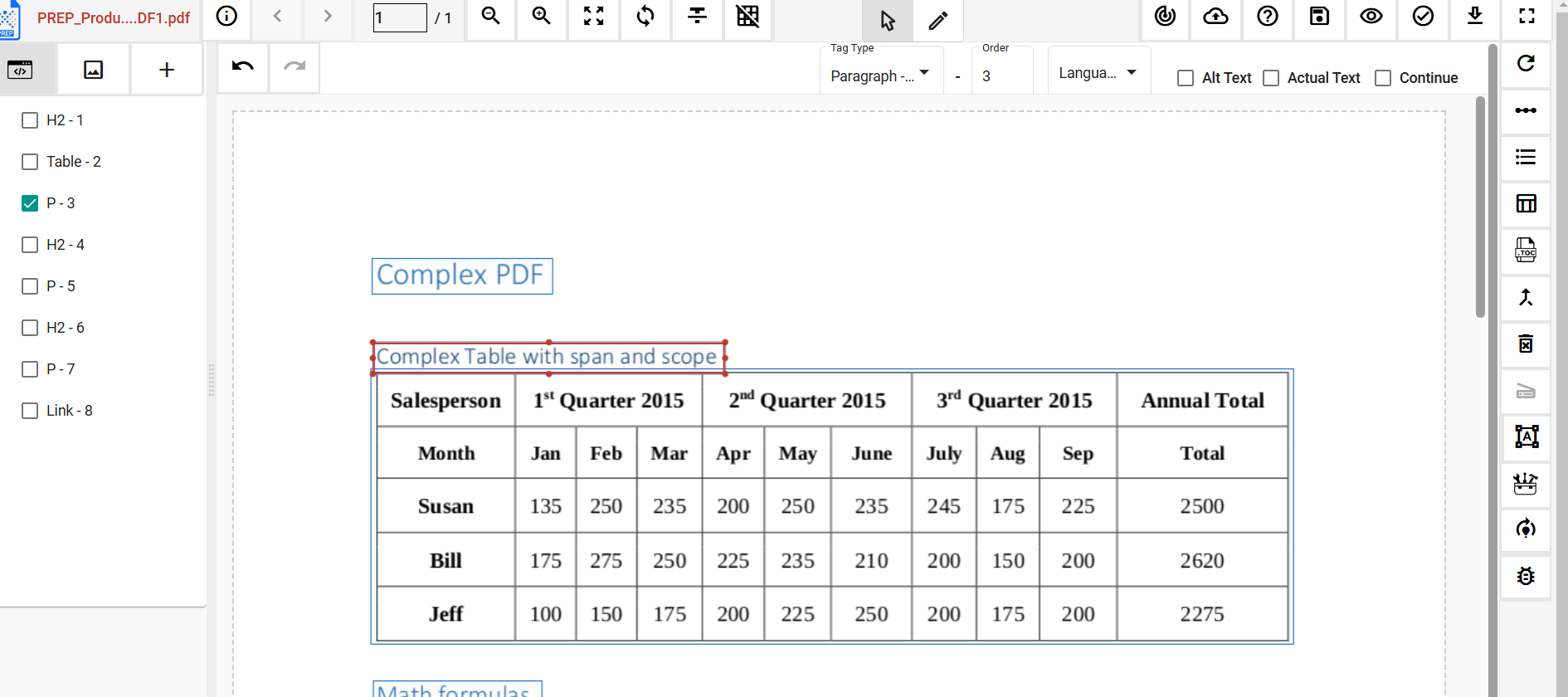
Step 2: Select the BBox to Fix:
- Click on the BBox that requires adjustment.
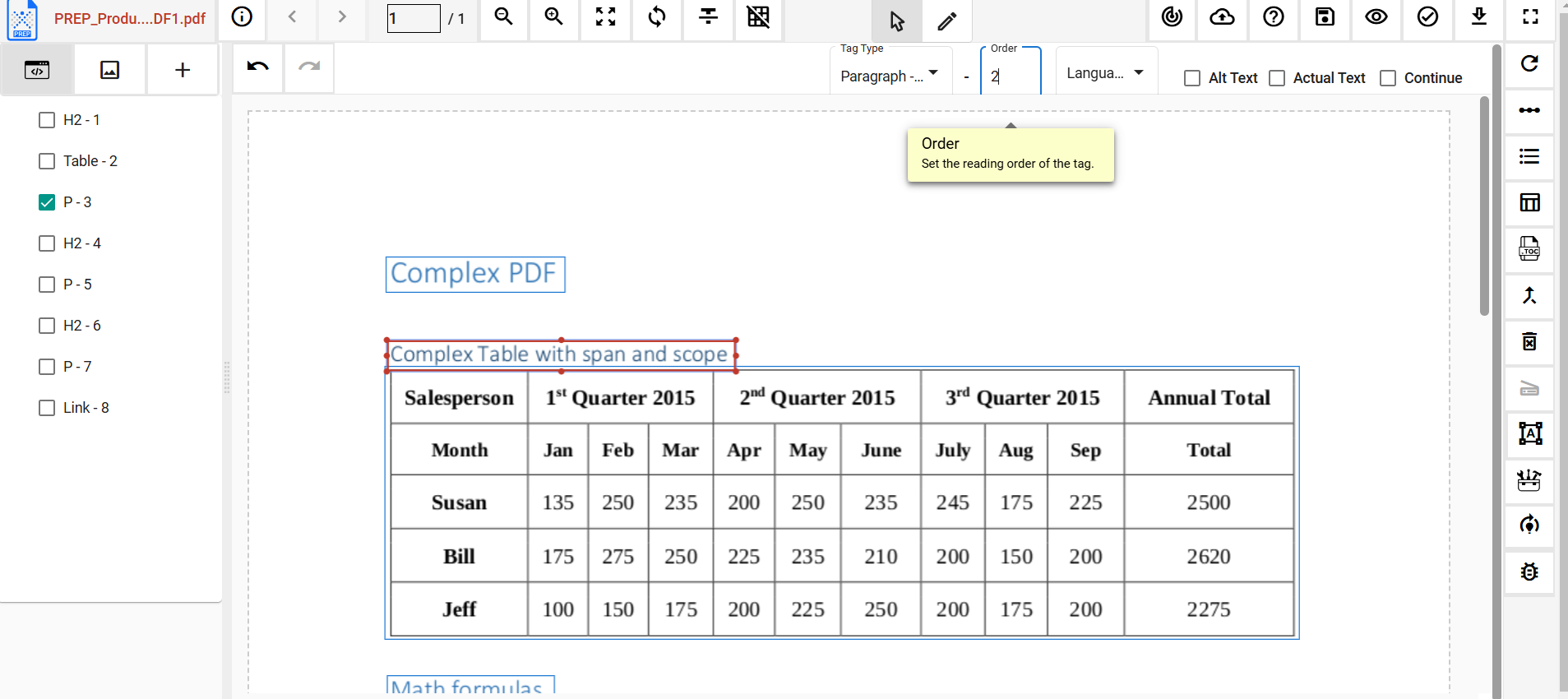
Step 3: Adjust the Reading Order:
- Navigate to the Top Toolbar.
- Click on the Order Number option.
- Enter the Desired Reading Order Number.
Method 2: Using Drag and Drop Tag
Step 1: Select the tag:
- Select the tag from the tag tree that you want to move.
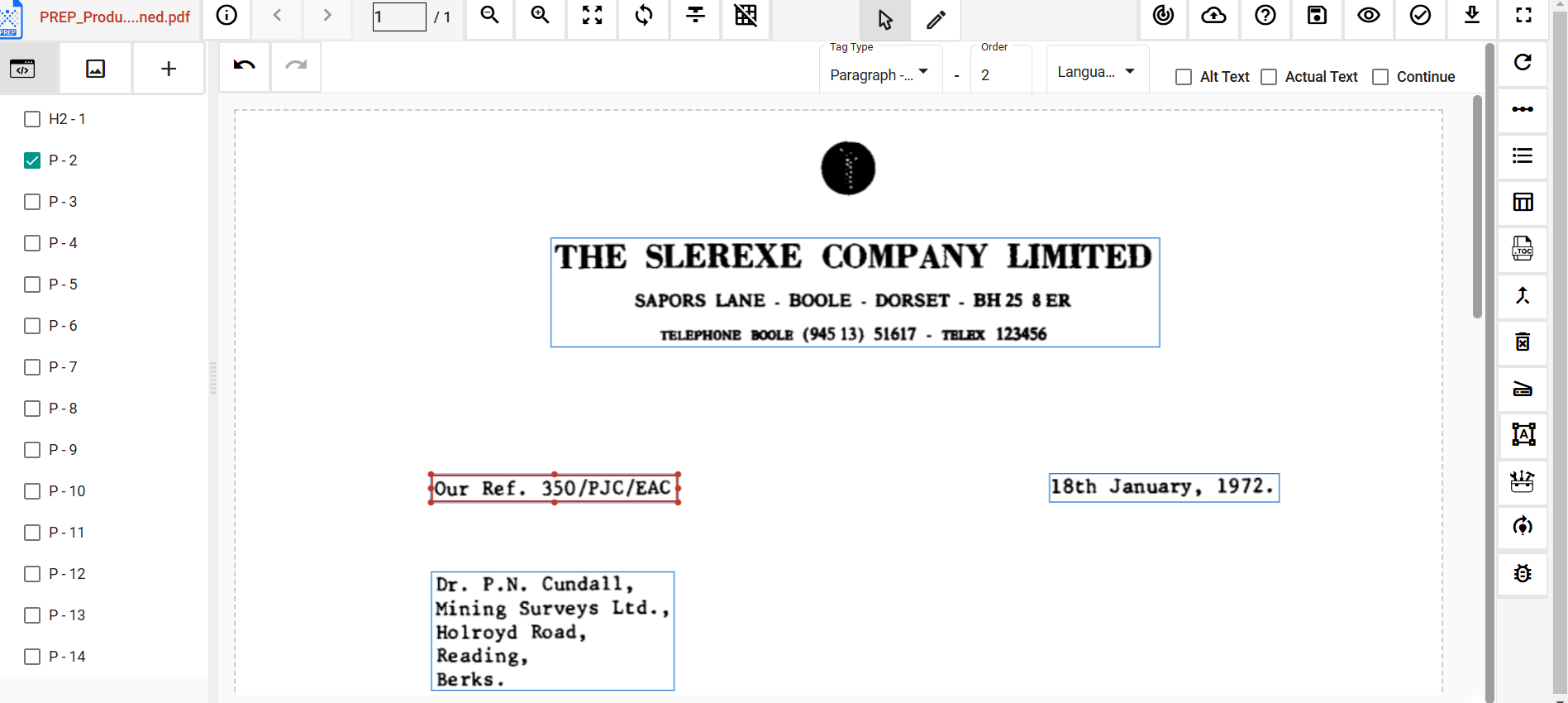
Step 2: Drag and Drop the Tag:
- Click and hold the tag. Drag and release it to the Desired Position within the Tag Tree.
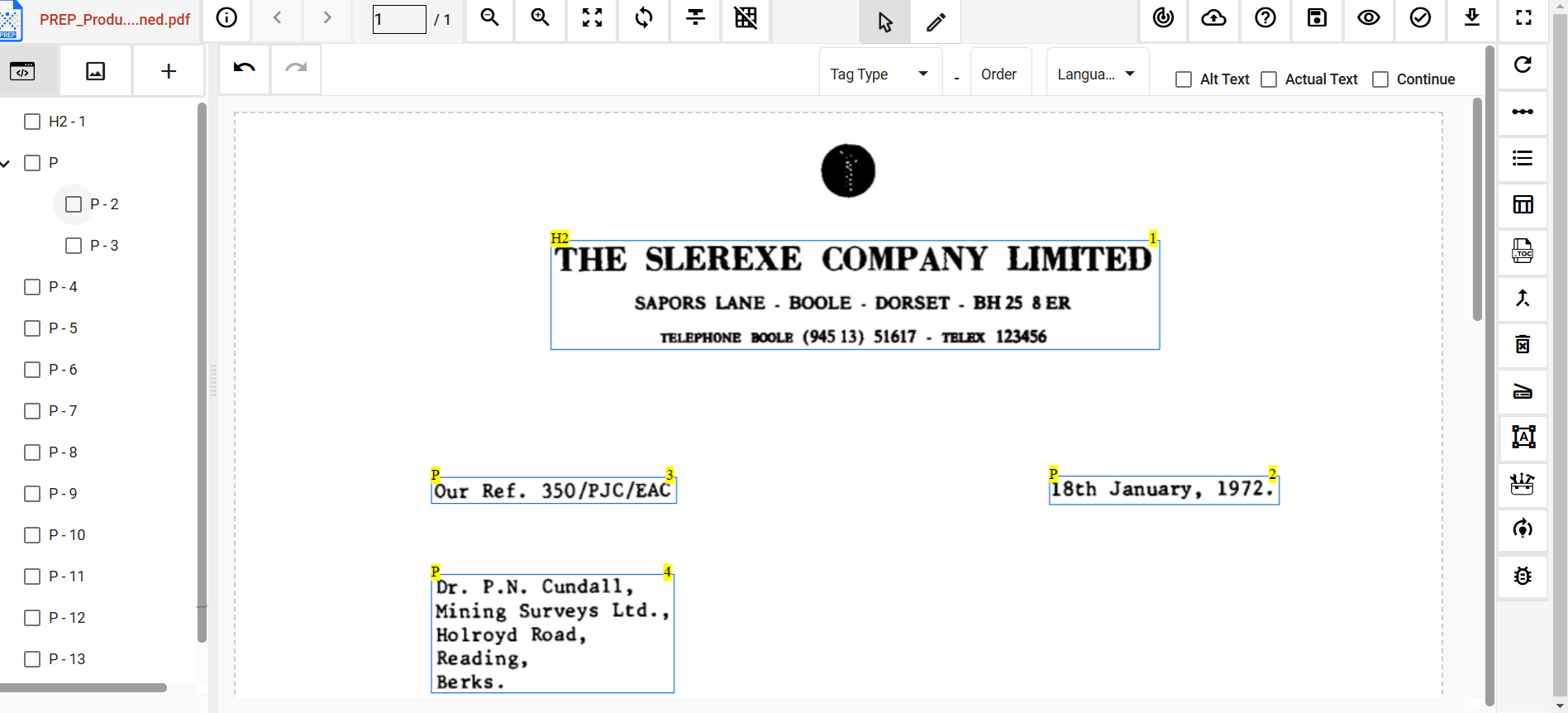
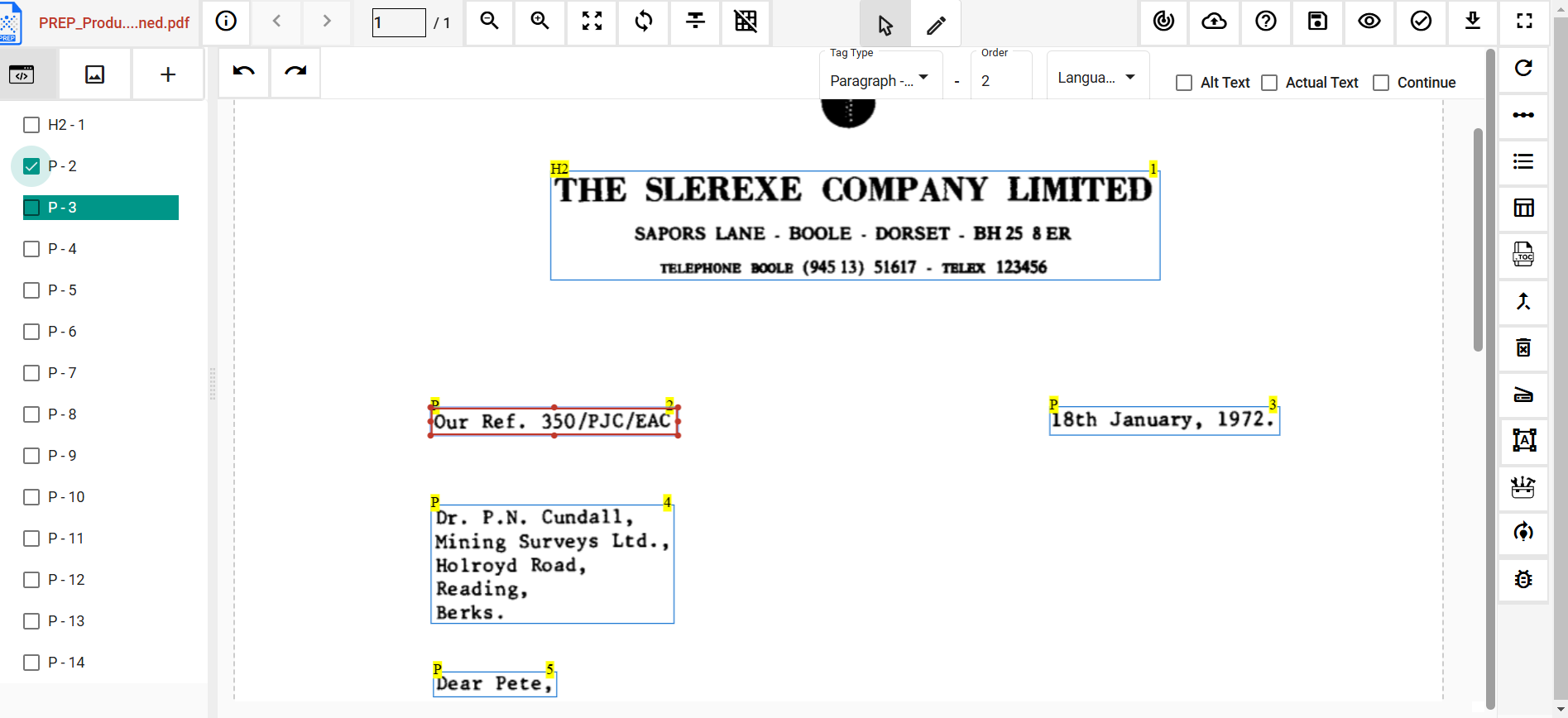
With the help of these two methods, you can fix the reading order of the PDF in a logical order.
2) Using Adobe Acrobat Pro DC
You can also use Adobe Acrobat Pro DC to fix reading orders. Here’s how:
Step 1: Open the Document
- Launch Adobe Acrobat Pro DC.
- Open the PDF file you want to check for reading order.
- Go to the left panel.
- Click on the Order button, then select View > Reorder.
- A panel will show numbered elements.
- Ensure the numbers follow a logical sequence, with each paragraph having its own number.
- Click an element in the panel to highlight its corresponding section in the document for better visibility.
- Identify elements like “Path” that don’t need to be read by screen readers.
- Right-click and select Tag as Background/Artifact.
- Ensure images and their captions are in the correct order.
- Drag the image below its caption if needed.
- Check the reading order of text boxes and adjust them to follow a logical sequence.
- Review the entire document to confirm all elements are correctly ordered.
- Save the document once you’re satisfied.
Make PDF Accessibility Easy with PREP
Continual Engine’s PREP solution significantly improves the accessibility of PDFs and documents, making them easier for assistive technologies, like screen readers, to interpret. With PREP, tagging lists and nested elements becomes a breeze with just one click, ensuring the tag structure is spot-on, and the reading order flows logically.
For documents with more complex layouts, PREP offers the flexibility for manual adjustments while also validating the final reading order to guarantee full compliance with accessibility standards, including WCAG 2.2 and Section 508. This makes document navigation smoother for everyone, enhancing both usability and inclusivity.