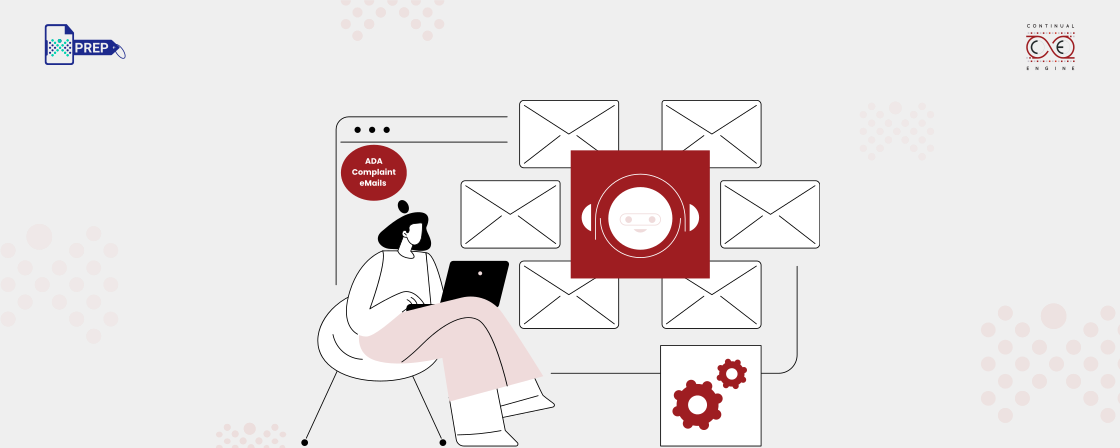
Do Emails Need to Be ADA-Compliant?
Yes. Although the Americans with Disabilities Act (ADA) does not explicitly mention email communications, emails are considered part of an organization’s digital experience.
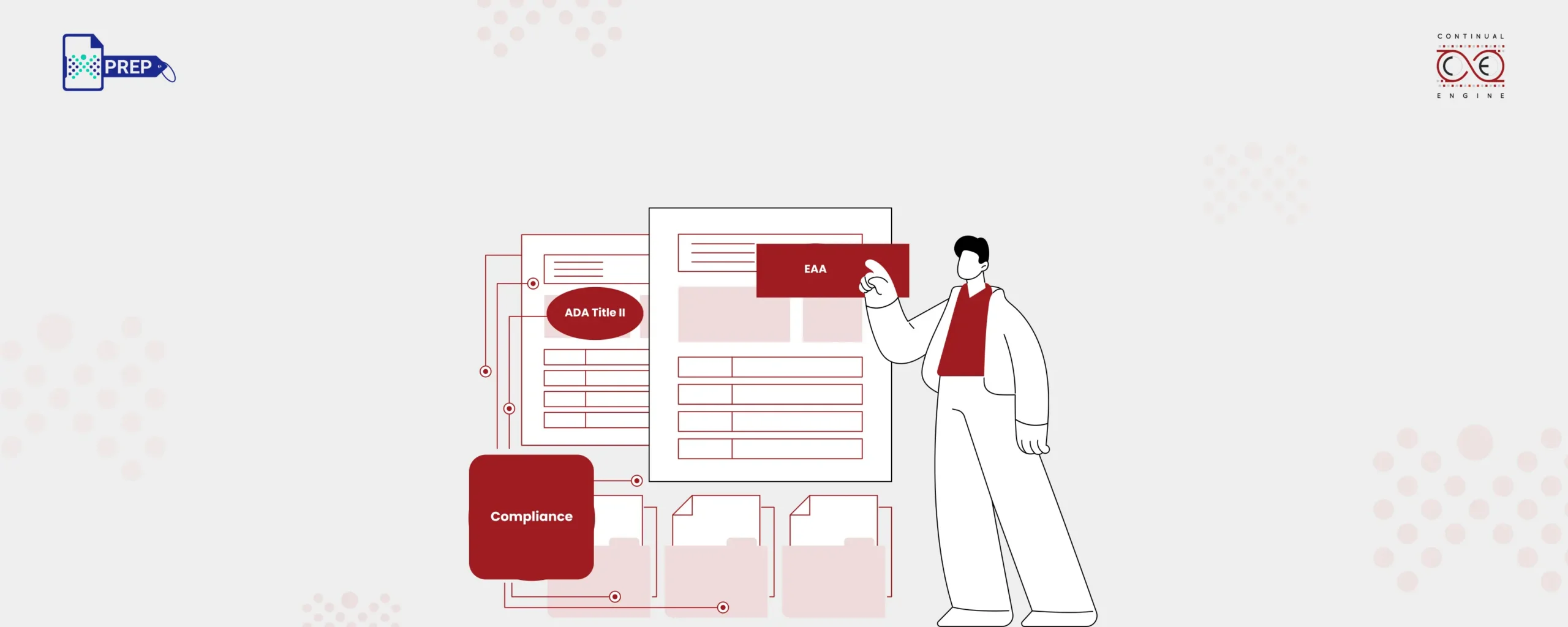
Organizations that already focus on website accessibility and ADA Title II compliance should also ensure their emails are accessible. Following WCAG recommendations helps create inclusive communications for everyone, including people using a screen reader, keyboard navigation, and other assistive technologies. Accessible emails improve usability, support compliance efforts, and help organizations provide equal access to information.How to Make ADA-Compliant Emails?
Accessible emails should be easy for everyone to read, navigate, and understand, including people using assistive technologies. Here’s how to make that possible:
1. Use a Clear Email Subject Line
Your subject line should accurately describe what the email is about. Clear subject lines help recipients understand the message’s purpose before opening it and make it easier for screen reader users to navigate their inboxes.
2. Use Clear & Simple Language
Write in plain language and avoid unnecessary jargon or overly complex sentences. Simple and concise content improves readability and makes it easier for all users to understand important information.
3. Use Proper Text Formatting & Styles
Organize content using short paragraphs, bullet lists, and meaningful headings instead of large blocks of text. Proper formatting helps recipients scan information and allows assistive technologies to interpret content more effectively.
4. Add Alt Text to Meaningful Images
Images that communicate information should include descriptive alt text. This allows people using a screen reader or other assistive technologies to understand the purpose of the image. Decorative images do not require detailed descriptions.
5. Ensure Text & Images Provide Sufficient Contrast
Text should stand out clearly against the background so that it remains easy to read for people with low vision, color blindness, or other visual impairments. Maintaining adequate contrast also helps support WCAG accessibility requirements.
6. Provide Descriptive Links & Hypertext
Avoid using generic phrases such as "Click Here."
Instead, use descriptive links such as:
- Download the Accessibility Guide
- View Product Information
- Read Our Blog on ADA Title II
Descriptive links provide better context for screen reader users.
7. Provide Accessible Tables in Email
If tables are used, keep them simple and use proper row and column headings. Complex layouts can make email content difficult for assistive technologies to interpret and understand.
8. Simplify Your Signature Block
Keep email signatures clean and easy to read. Avoid excessive images, multiple fonts, and unnecessary design elements that can make signatures confusing for users and assistive technologies.
9. Verify Email Attachments Are Accessible
Attachments should also be accessible. PDFs and other documents should include proper headings, reading order, and tagging.
This is especially important when sharing reports, forms, brochures, or an ADA Title II accessible document. Organizations should also ensure PDFs are accessible for mobile devices.
Make Email Attachments Accessible at Scale
Ensure PDFs and other documents shared through email are accessible and compliant.
10. Make Sure Your Design Is Responsive
People access emails on desktops, tablets, and smartphones. Hence, they need to be responsive to different screen sizes and devices.
How to Send ADA-compliant emails with Gmail and Outlook?
The accessibility requirements discussed above apply equally to both Gmail and Outlook. The one area where they differ is how alt text is added to images within emails. Let’s walk through the step-by-step process for adding alt text in each platform.
1. Add Alt Text to Emails in Gmail
When inserting an image in Gmail:
- Select the image.
- Click the three-dot menu.
- Choose "Add alt text."
- Enter a short, meaningful description.
- Save the changes.
2. Add Alt Text to Emails in Outlook
To add alternative text in Outlook:
- Insert an image into the email.
- Right-click the image.
- Select "View Alt Text" or "Edit Alt Text."
- Enter a description that explains the image’s purpose.
- Save your changes.
Automate Alt Text for Accessible Emails with PREP Image Alt Text API
Writing alt text for every image manually can quickly become time-consuming, especially when managing large email campaigns.
PREP Image Alt Text API helps organizations automatically generate meaningful image descriptions, making it easier to create ADA-compliant emails at scale.
Benefits include:
- Automatically generating alt text for email images.
- Improving accessibility for screen reader users.
- Reducing manual effort and saving time.
- Supporting ADA and WCAG compliance goals.
- Scaling accessible email creation across multiple campaigns.
Automate Alt Text for Every Email Campaign
Generate meaningful image descriptions automatically and create accessible emails more efficiently with PREP.
Frequently Asked Questions (FAQs):
-
What standards guide email accessibility under the ADA?
Although the ADA does not provide specific accessibility requirements for emails, organizations commonly follow WCAG guidelines to improve accessibility. These recommendations cover text structure, color contrast, images, links, tables, and overall usability.
-
What key elements should emails include to be accessible?
Accessible emails should include clear subject lines, simple language, proper headings, descriptive links, sufficient color contrast, alt text for images, and accessible attachments.
-
How should email campaigns be tested for ADA compliance?
Email campaigns should be tested using accessibility tools, manual reviews, and assistive technologies. Testing with a screen reader can help identify issues that may affect users with disabilities.
-
Do ADA-compliant emails also need to meet WCAG standards?
Yes. Most organizations use WCAG guidelines as the foundation for creating ADA-compliant emails because they provide widely accepted accessibility recommendations.
-
What are the benefits of making emails accessible beyond legal compliance?
Accessible emails improve readability, enhance user experience, increase engagement, and make information easier to understand for all recipients, not just people with disabilities.
-
Are businesses legally required to make emails ADA-compliant?
Although the Americans with Disabilities Act (ADA) doesn’t explicitly mention email accessibility, organizations are generally expected to provide accessible digital communications. Specific obligations may vary depending on the organization and applicable laws, but making emails accessible helps reduce barriers and supports inclusive communication practices.